Thursday, November 12, 2009

Things You Should know About Multiple Monitor Computers! 1of2

Super PC Multi Monitor Store

GET THIS


If you have purchased some new graphics card upgrades for you PC & want to know how to put together say up to four monitors, then you'll want to check out this article, How to Build a Quad Monitor Display. Learn how to organize, assembly tips, and get free advice on making your multiple monitor array right the first time.

On the other hand you may be wondering what would be right for your application. Would a large HDTV serve you better than a multiple monitor array? Take a look at Compare a Single 30-inch Monitor to a Quad Monitor Display to discover commonly overlooked details of the two. It's really a good idea to consider, before spending those extra dollars on something that may not serve your unique individual needs.

For your domestic PC learn how to zap one last breath into a dysfunctional hard drive so that you can save that missing data once and for all.
How To Recover Data From An Old Hard Drive will give you many ideas the Pros would use to retrieve lost data from a dead hard drive. From data recovery software to trying last ditch efforts such as the "freezer trick"

Then again you may be more interested in permanently erasing files containing private information. Little do we know that simply throwing the hard drive in the trash could potentially open up a nightmare of identity theft and fraud. That's why some folks have started taking hammers to their old hard drives. However you can learn a few slightly more sophisticated methods by reading How to Erase Private Data from old Hard Drives.

First time installing a graphics card? Learn what to do and what not to do at the How to Set Up Multiple Monitors article. It has more of a step by step feel to it. Reminds me of the first time I installed a video card. Many scary things can pop up when your not sure what to expect. This little blog will shed some light on the situation and you wont have to worry about doing something wrong.
The days when nerdy computer geeks isolated themselves in fear of persecution are far behind us.

Today Bill Gates still reigns as the savior of geeks all around the world, and with all due glory. Now that many so-called “computer geeks” are becoming wealthy, the age of ostracizing the computer savvy is coming to an end. Although the road to true computer geekdom is long and torturous, the benefits are well worth it. How to Become a Bonafide Computer Geek with a Multi Monitor PC will help you along the way.

How to Extend the Taskbar Across Multiple Monitors is one of the first things a typical multiple monitor computer user may ask. Once you have everything set up and ready to go, the next thing is prepare yourself to utilize all the monitor power you have with a multiple monitor task bar. It really isn't hard at all. Several programs out there to choose from. Find out which one is the best.

If your still in the dark on the multi-screen phenomena Get the Dual Monitor Setup will enlighten you towards a more lucrative Computing experience. Everything from increased productivity, to decreased frustration and subsequently stress. Upgrading your existing PC our purchasing a multi monitor PC could be one of the best things to do this year!

Business owners know how powerful good word of mouth can be. Likewise when it comes to bad reputations, and few things will rattle a persons feathers more than terrible customer service. Unfortunately for many of us in the Customer Service department, there's more data to toggle through than ever before. This can easily become a burden of time for the customer on the other end of the phone. So definitely read Improving Customer Service with Multi Monitor PC’s.

The new status symbol in Silicone Valley is multiple computer screens. Size doesn’t matter anymore, it’s how many you have. Richard Hart, a San Francisco, CA reporter for ABC News reports on a phenomena of three or even four monitors per person. So finally, if your still in doubt as to what the fuss is all about, check out New Report on Multiple Monitor Displays in the Office.

Things You Should know About Multiple Monitor Computers! 2of2


computer productivity


Typical obstacles preventing efficient productivity,


can generally be narrowed down to a handful of common beliefs says Sally McGhee, a recognized thought leader and innovator in the field of productivity management. She has trained thousands of people in the corporate environment, and has more than 25 years’ experience as a consultant and an executive coach, and also is the founder and CEO of McGhee Productivity Solutions. Over Coming Productivity Limits with Multiple Monitors


Save time and money towards your next vacation! smileWe all can think of many examples of how we waste time by not having an integrated management system to help us remember what, where, when, and how data should be sorted, filtered, digested, and recycled. Starting with your computer monitor, you can start saving exponentially. Try Multiple Monitor Computers And Relax Your Mind

Manage all your communications in one interface.


Microsoft Office helps us better manage time and information, connect across boundaries, and help remain safe and in control. There are many reasons why people, small businesses, and large corporations would want to use Outlook. And the best way to take advantage of all that Outlook has to offer is by installing a dual monitor video card, or get a dual monitor adapter and become another one of millions flocking to harness the power multiple monitors technology and productivity gains. Using Microsoft Outlook With A Multi-Screen Display

Excel using dual screen


Frequently I use Microsoft Excel to render records of various projects. Having a multiple monitor computer definitely helps. Often times I’ll compare two Excel spreadsheets side by side so that I can stay on top of things row to row. Using dual computer monitors, I’ll put a spreadsheet on each computer monitor. Microsoft Excel Works Wonders With Multi-Monitors

The basic concepts related to the various types of multiple-adapter configurations are not new or specific to Windows Vista, but are important to understand in relation to the design of the multi-adapter feature in Windows Vista. Using Windows Vista & Multiple Monitors


Create More Powerful & Dynamic PowerPoint Presentations with Dual Screens by Enabling the Presenter View allows you to view notes and other information to help you while you’re giving the presentation. The audience sees the slide show while you view notes and upcoming slides.

If a regular stock computer was a bicycle then a Day Trading Computer would be a Harley Davidson! The power, functionality, and speed are superior. If you’re a day trader I would suggest doing some research and make sure you get exactly what you need. These computers come standard with a lot of stuff but look into any upgrades that could really make a difference for you. Great quality video cards are a must for day trading computers. Designing a Multiple Monitor Trading Computer


I propose that multiple monitor computer to be used in schools to assist students with their learning performance. The progress of the multi-monitor computer has enabled an explosion in the visual ways of teaching presentation. Please read, Educators getting With Multiple Monitors

In today’s multi tasking computing world, it’s not unusual to see people constantly switching from window to window trying to get data transferred from one application to another. Even using the hotkey Alt-Tab window switcher gets old. We want to see the data as soon as our eyes can hit it. It’s a result of this type of madness, the popularity of multiple monitor computer workstations has increased dramatically. The Future of Computer Monitors

You’ve probably noticed that everywhere you looks these days you hearGoGreenNuclearsomething about going green. Whether it be in the news, politics, fashion, and even technology, as well as a Planet Green TV network, you can hardly escape the growing pressure to relieve some of the carbon footprint that we all tend to leave behind. A Nuclear Workstation Is A Great Way To Go Green!

Consider A Multiple Monitor Display


Dual Monitors with the Power of Radeon Graphics

radeon dual monitor video card

Radeon is the name brand for the ATI Company, and represents some of the most cutting edge dual screen graphics cards available today. The ATI Radeon HD 4670 delivers a remarkable combination of DirectX 10 gaming performance and hardware processed 1080p video on dual monitors. Connect to your HDTV with HDMI that includes built-in 7.1 surround audio. That’s a dual display with some serious muscle! read more..

Introducing the Quad Monitor Display Computer


Probably recognized by many to be “the most production for the buck” is the Quad Monitor Computer. Quad Monitor Computers can connect up-to four monitors at the same time. Monitors are gaining high recognition for the surprising productivity gains. A display designed in such a way that it can be used in the home as well as the office, or any other workplace where multi tasking takes president. A computer specifically designed to support a quad monitor LCD display is typically manufactured with high end graphics card(s) built in.

Super PC.com manufacture some of the industry’s best multiple monitor desktop computers/PCs. There is no need of adding additional hardware when your PC is pre built to support a multi-monitor display. However, if you already have a computer supporting single screen or even (dual screens with use of a dual monitor adapter), you can get a Multi Monitor Video Card to support up to 4 (four) monitors / displays simultaneously as well as seamlessly. A few of the industry’s best companies are Matrox, NVIDIA, and ATI, all produce high end quad monitor solutions and all offered at www.multi-monitors.com with free shipping in the US. read more..

3 Quick ways to get a Multi-Monitor Setup


A few other options may include getting a Multi Monitor Video Card and go with a triple monitor stand. It doesn't make much difference in the Windows Control Panel if you have a Multi-Monitor Display over a Dual Monitor Display like this. For example if you were a stock guru that uses a Trading Computer to support your Multi Monitor Setup then obviously plugging in an adapter or two may not be the most efficient way to ensure those stock quotes are humming along as fast as you would like. The refresh rate may lower with the adapters. For laptop users check out these Multiple Monitor Laptop Systems. read more..

Dual Monitor Setup using Windows

If you’re currently using or plan to use Windows XP or Vista, did you know that you can configure your desktop run Multi-Screen Displays? It’s easier than the average non-tech geek might think, and this blog is going to give you step-by-step instructions on how to use this awesome feature built in the Windows operating system. The whole process should only take the everyday novice only a few minutes to get you out of the Stone Age of single monitor computing and into the now with Multiple Monitor Displays. This is a very efficient way to get that Dual Monitor Setup, and once you try it, you’ll never want to go back to one monitor a, I guarantee it. Instead you may be on the search again for the most accessible Dual Monitor Video Card or at least a Dual Monitor Adapter to satisfy your new found productivity multiplier. read more..

“Multiple Monitors” are in!


Multi-monitor, also called Multi-display, Multi-head, and Dual-Monitor, is the use of multiple physical display devices, such as monitors, televisions, and projectors, in order to increase the area available for computer programs running on a single computer system. Microsoft describes this setup as “one of the best ways to improve your productivity”. read more..


A Tutorial Of Multi-Monitor Computing

Functional Taskbars for All Monitors!.quad monitor display

Two of the best features, I think, are the Taskbar Extender, and the ability to stretch a QuickTime video across dual screen monitors and not lose any picture quality. In fact it sometimes gains picture quality to make one big screen. With the Taskbar Extender, the once ordinary windows single monitor taskbar extends across multiple monitors and displays the application in the monitor it’s on. That’s better than having to always go back to the main monitor to find an application, usually among many others, in the taskbar. Click title to read more..

Relieve Productivity Stress w/ Dual Screens

Let’s take in to consideration some thoughts on sufficient use, or lack of, our time. Our daily schedule is filled with chores, and things to do. The modern day revolution of technological breakthroughs in office/business/personal needs can often become hard to keep up with. All in all, the more we can get done in an hour, the better, and not the other way around. With that in mind, consider a dual monitor video card. Click title to read more..

5 Efficiency Tips for Dual monitors

Remembering back when I originally switched to a dual monitor setup to gain efficiency online, I know I’ll never go back. The productivity benefits came not only in apparent gains but actually relieved stress and tension associated with my increasing frustration. Frustrations that stemmed from the “single monitor blues” that is. Of course I have written about how easy it is to setup a multiple monitor system including but not limited to adding a dual monitor video card, to using a dual monitor adapter. So we already know how easy it is to create multiple monitor displays. Now we’re going to look at how to make the most of your multiple monitor setups. Here are 5 tips on efficiency using dual screen monitors that have worked for me. If you have a multi screen computer these tips will benefit you as well but to keep it simple this blog will address dual monitor backgrounds. Click title to read more..

Mounting Dual Monitors


Whether you used a dual monitor video card or a dual monitor adapter, when it comes to the dual monitor setup, you should know that dual monitor wallpaper will not display quite right unless you have your dual monitor display setup on a Dual Monitor Mount. Click title to read more..

New Multiple Monitor Owner Professes Love at 1st byte!

multiple monitor blogs

I recently purchased a new computer from multi-monitors.com, which is the home of the computer brand, Super PC. I have been eyeing one of their multi-monitor displays for some time now as I do a lot of multi-tasking on my day trading computer i.e., multi-tabling poker play, video gaming, and I enjoy having the extra work space on my multiple monitor display so I am not constantly switching back and forth from window to window on the task-bar. I purchased their Nuclear Workstation Computer. The one I purchased supports up to 6 monitors and is a beauty of a machine. Click title to read more..


Sunday, August 30, 2009

Multiple Monitors Reign King

What exactly does the term “Multiple Monitors” refer to?

Multiple Monitors, also commonly known as or referred to as Multi-Screen, Multi-Screens, Multi-Monitor Display, and Multi-Monitor Displays are all synonymous terms referring to the use of more than one monitor. It may be a mystery as to how many different terms we can think of when we refer to any Dual Monitor Setup or larger to be connected to a single computer, and controlled by a single mouse and keyboard. This type of Multiple Monitor setup allows you to visually interface with more than one program at any given moment in time, as well as compare charts, and use the "copy and paste" function across a Dual Monitor Wallpaper without the need to install additional expensive and unecessaryover priced and over rated Dual Monitor Software.


Do multiple monitors increase productivity?

Do you remember that old saying we heard as a child and can still hear it ring on. Even in todays fast paced superhighway people still know that "two heads are better than one". We the same aspect literally applies to your display setup. I have been using Multiple Monitors for years, and I have noticed a true increase in productivity, every time I upgrade to a system to support more monitors. It's true that Dual Screens are better than one. Another great thing about it that you do not even need extra software necessarily. So far I have three monitors on my main computer and two on my side kick pc upstairs. You can get a Dual Monitor Video Card and add another monitor fairly easily, or if your graphic needs aren't so high you might even get by with using only a Dual Monitor Adapter for adding a Dual Monitor. Many people who have never used a multi-monitor PC may not understand the true advantage of this technology, and dismiss the idea as novel. On the other hand, an individual who utilizes multiple monitors knows about the power of visualization and organization, and feels as if they have discovered a wonderful secret for business multi-tasking.


Multiple Monitors for Day Traders

Ask any of those who Trading Computers and they will tell you that when it comes to staying up-to-date means staying open to new windows. That in itself is a big testament to how useful and productive you can be with multiple monitors. If the Wall Street big dogs are using them, you know it’s going to be an effective tool. In fact, using multiple monitors for stock trading is guaranteed to make you a better trader.
Back when I used to take calls from Day Traders, they would always prefer a single machine that could support a Multi Monitor Taskbar and more times than not they would choose the Power Trader Pro offered by Super PC. Talk about one hotrod of a personal deasktop computer, the Power Trader Pro probably stands as the best Trading Computer on the market. For Example: You can view charts on one screen and run your trading software on another all at the same time. If you use more than two screens don't worry aboiut it! You can watch your live news streams on a third monitor or perform internet research without the risks of losing your current view. You can even copy and paste across all the monitors you have going, rather than maximizing and minimizing windows over and over again and again.

Dual Screen Setup

If you’re currently using or plan to use Windows XP or Vista, did you know that you can configure your desktop run Multi-Screen Displays? It’s easier than the average non-techgeek might think, and this blog is going to give you step-by-step instructions on how to use this awesome feature built in the Windows operating system. The whole process should only take the everyday novice only a few minutes to get you out of the stone age of single monitor computing and into the now with Multiple Monitor Displays. This is a very efficient way to get that Dual Monitor Setup, and once you try it, you’ll never want to go back to one monitor again, I guarantee it. Instead you may be on the search for the most accessible Dual Monitor Video Card or at least a Dual Monitor Adapter to satisfy your new found productivity multiplier.

Here is a very helpful video for Windows Vista users. You can just continue to read through the article and/or if something doesn’t make sense, just watch the video below for a clear demonstration with instructions on how to enable Multiple Monitors on your computer, but will most likely (but not absolutely) need at least one if not more Multi Monitor Video Card.


Windows XP Users:

As a side note, you should be aware that in a Multi Monitor Setup one of the monitorswill serve as the primary monitor which will display the login dialog upon start up of your pc. Most all of the items you open will default to the primary monitor. One of the greatest things is that you can actually select completely different resolutions for each screen as well as adjust the color settings individually. To connect up your Multiple Monitor System you will need additional video outlets or one (or more) of the easy to use and truly a no brain-er "so easy a caveman can do it" Multi-Monitor Adapters offered by the company that brings us the productivity machine that is gaining steam as an authority and known worldwide as Super PC. It's the type of simple yet dependable Multiple Monitor video adapter that will allow you to take full advantage of the awesome productivity gains you would expect to get when using a Multi-Screen solution without the daunting need to install expensive, over-rated, over-priced, off the chain and unnecessary multiple monitor software.

Configuration Step: Here we go!

1) Go to START -> CONTROL PANEL

2) Select APPEARANCE AND THEMES -> DISPAY

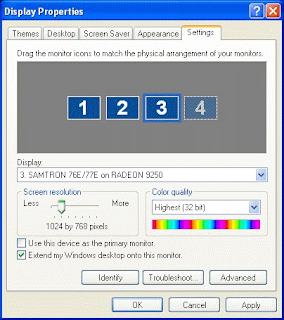
3) Select the SETTINGS TAB and click IDENTIFY which will display a large number on each of the monitors. This shows which monitor is going to correspond with each icon.

4) Click the icons and drag them to the real world position in which the monitors are set up.
Click APPLY or OK


That’s almost just about it, your screen will most likely flash and Windows may ask you if you’d like to keep the settings and if all is well and everything looks good, then go ahead and hit OK. Viola! You now have a Multi Screen / Multi Monitors to work with. Enjoy!

To change the primary monitor in Windows XP you can do the following:

Steps:

1) In SETTINGS TAB of the Display Properties Dialog box, click once on the monitor icon that you would like to make the primary monitor.

2) Click to select the USE THIS DEVICE AS PRIMARY MONITOR check box. This box will not be available if you select the monitor that is already your primary monitor.

Windows Vista Users

Note: Windows Vista is designed to be a little more user friendly. When I plug in my additional monitor, Windows automatically sets it up for me, MOST OF THE TIME. So, I’ve included these directions for the times when Windows is unable to set up your monitor on its own. Also, as mentioned above, I’ve included a short video for the Vista setup, just in case you have trouble finding anything.

Configuration Step:

1) Go to the START button (actually, it’s the circular Window logo in the bottom left hand corner of the screen on most Vista desktops.)


2) Select CONTROL PANEL from the right hand column.

3) If you are in Classic View, then select CONTROL PANEL HOME.

4) Under the Appearance and Personalization, click ADJUST SCREEN RESOLUTION


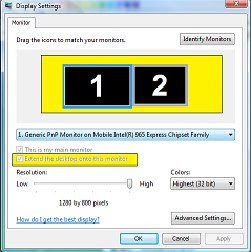
5) Now you should see two or more black boxes if you’ve already connected your additional monitor. The icons are representations of the real world position of your monitors. You can drag and drop the icons so that they accurately represent where your multiple monitors are located on your desk.


6) Now select the additional monitor by click the icon and make sure the check box below that says, "Extend the desktop onto this monitor" is selected, then click APPLY. Once complete, this process will enable your Multiple Monitor Setup to perform seamlessly and allow you to navigate through all monitors.

7) You may see the screen flash, and the desktop should now be extended to show Dual Screens. You should get a little pop up that asks if you’d like to keep these settings. If everything looks good, click OK. If something isn’t right, click CANCEL button and try one more time from the top.


There you go! Just about everything you need to know to setup your Multiple Monitor Display. Now you can finally paste that old black lab lounging peacefully on the old wood porch (like great Grandpa had in the Ozarks of MO) as a Dual Monitor Wallpaper. Or you can even go a step further than that. It all depends on the individual as to what type of Dual Monitor Backgrounds he or she may or may not use. In a world that strives to be politically correct, it's good to know that there's a Multi-Monitor Display on your desk to show all the different colours of diversity simultaneously!

Multi-Screen Setup

1) The best overall thing to start out on, is purchasing a Multi-Monitor Computer from multi-monitors.com. Only then will you have the full capability of harnessing full range, unadulterated, no holds barred Multiple Monitors. They are the masters of the Dual Monitor Setup and of Multiple Monitor computers. With they're own brand rightfully coined as Super PC, they carry a Dual Monitor Adapter that really kicks butt for a little plug and play gadget that anybody that has an extra VGA outlet can use as a Dual Monitor Cable. Best of all they offer the best quality with the best price, and are some of the original pioneers for this new breed of multi-tasking super powers.

2) If you get a USB to VGA Adapter, or the USB to DVI Adapter (links above) that will allow you to add an extra monitor to your computer via any USB 2.0 port. You can also add multiple extra monitors by using multiple adapters however not recommended over a Dual Monitor Video Cardor more. This is a great option for viewing documents, surfing the web, using Microsoft office and most all those other business applications that can tend to slow down productivity by forcing the user to toggle between windows on a single monitor display. however, this may not be the best application for intense graphical situations such as HDTV, Blue-Ray, Gaming and 3D/CAD Workstation applications and so forth. For those types of applications, its highly recommended that you purchase a high-powered Multi-Screen computer from multi-monitors.com.

3) You can replace or add an extra video card to your existing computer, depending on how many monitors you want to support. Although this may sound easy to do on paper, in reality it can be complex solution for a newbie/novice beginner, especially when trying to find a compatible graphics card to support things such as Dual Monitor Wallpaper and other Dual Monitor Backgrounds without having to install Dual Monitor Software.

Once you have your Multiple Monitor System set up and ready to abuse, you will need to enable all of your monitors in your "Display Properties" in the Control Panel Section. Here is a splendid link to a virtual Multiple Monitor Setup in the Windows Control Panel.


A few other options may include getting a Multi Monitor Video Card and go with Multiple Monitor Displays. It make much difference in the setup in Windows Control Panel if you have a Multi-Monitor Display over a Dual Monitor Display like this. For example if you were a stock guru that uses a Trading Computer to support your Multi Monitor Setup then obviously plugging in an adapter or two may not be the most efficient way to ensure those stock quotes are humming along as fast as you would like. The refresh rate may lower with the adapters. For laptop users check out these Multiple Monitor Laptop Systems.